- Choose one PDF.
- Delete, rotate or move each page.
- Press Create PDF, then Save PDF.
Upside-down scans and pages that should not go out
Fix a page that went through the scanner upside down, or straighten pages a phone scanning app saved sideways. Keep only the few pages a form asks for out of a long report, or drop blank pages and cover sheets before you send something.
It is also useful for removing pages with personal details before sharing a document, such as keeping only the statement months a landlord or lender asked for.
How to organize pages
After you add a PDF, each page appears as a small preview. Under each preview you can delete the page, rotate it 90 degrees clockwise, or move it earlier or later with the arrows. A deleted page can be brought back until you save.
The previews are drawn in your browser. Font data for documents without embedded fonts, common in Korean, Japanese and Chinese files, is loaded when the page opens, so text shows up correctly. Once "Ready" appears you can go offline.
Keeping only the pages you need
Delete everything except the pages you want and save, and you get a PDF with just those pages. If a 30-page report only needs its three-page summary, delete the other 27 and save. You can reorder and rotate the remaining pages on the same screen.
To turn one PDF into several files, use Split PDF, which splits by page, by a fixed number of pages or by ranges in one go. If you only need some pages as pictures, PDF to JPG with a page range is quicker.
What the -edited copy keeps
The result keeps the original name with -edited added, so report.pdf becomes report-edited.pdf. The original file is not changed.
Pages are moved, not redrawn, so text stays selectable and quality does not change. Rotating only changes the page's orientation setting. Bookmarks from the original are not carried over.
When it won't open or previews are slow
Password-protected PDFs cannot be opened here; if you know the password, remove it first with Unlock PDF. Some files that restrict editing are refused as well. If previews never appear, reload the page, wait for "Ready" and add the file again.
Documents with hundreds of pages take a while to preview, and a computer handles them better than a phone. If saving does nothing inside an app's built-in browser, open the page in your regular browser.
How to check that your file is not uploaded
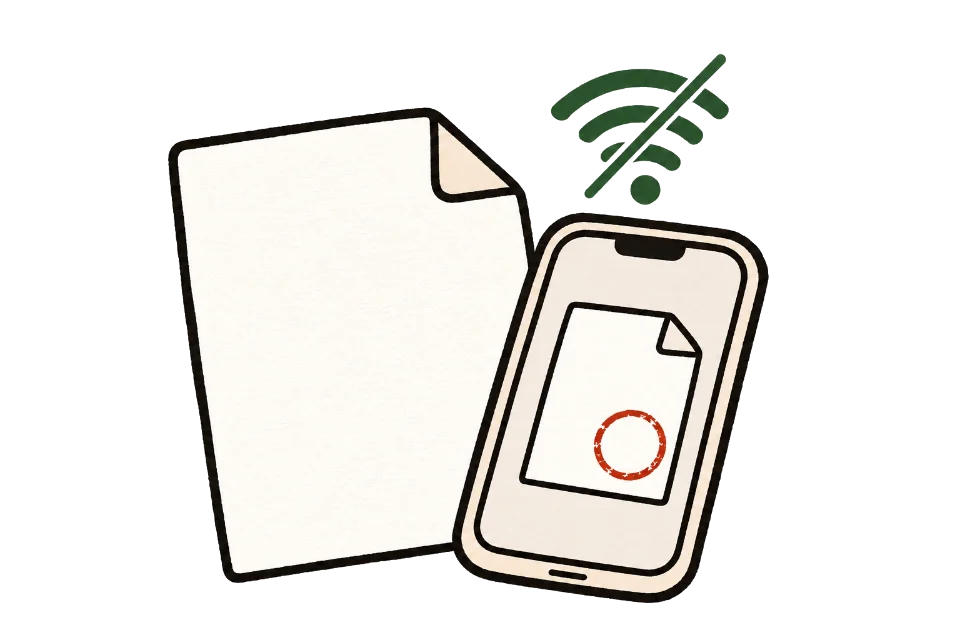
The simplest test is to go offline. Once this page shows "Ready", turn off Wi-Fi and mobile data, then add your files. Processing and saving still work. A tool that uploads files would stop here.
You can also use developer tools. On a computer, press F12, open the Network tab and run the tool. You may see analytics or ad requests, but no request anywhere near the size of your file.
Common questions
Can I split into several files at once?
This tool saves one file. To split a PDF into several files, use Split PDF.
Does rotating reduce quality?
No. Only the page rotation setting changes; the content is not re-rendered.
Can I open password-protected PDFs?
Not directly. If you know the password, remove it with Unlock PDF and open the unlocked copy here.
Can I organize several PDFs together?
This tool works on one PDF. Merge them first with Merge PDF, then open the result here.
Does deleting a page change my original file?
No. The original stays as it is, and the result is saved as a new file ending in -edited.
How do I rotate 180 degrees or counterclockwise?
Each press rotates 90 degrees clockwise. Press twice for 180 degrees, three times for 90 degrees counterclockwise.
Does it work with scanned PDFs?
Yes. A scanned PDF is a picture on each page, and deleting, rotating and reordering work the same way.