- Choose one PDF.
- Enter a page range if you need one (leave empty for all).
- Press Convert to JPG and save.
For places that won't take a PDF
Paste a table or chart from a PDF into slides, a document or a chat. Upload pages as images to a site that does not accept PDFs, such as some forums, marketplaces and social networks.
Keep an event flyer or ticket that arrived as a PDF in your phone's photo library, or pull a few pages from lecture slides into a note-taking app.
Choosing pages
Leave the range empty to convert every page. To pick pages, type something like 1-3, 5, which means pages 1 to 3 plus page 5. Separate parts with commas or spaces; a range can use a hyphen or a tilde.
A page number that does not exist, or a backwards range such as 5-3, turns the box red and nothing starts. A page listed twice is converted once.
File names and image size
A single page is saved as name-page.jpg, and several pages come as one name-jpg.zip. Images inside the ZIP carry the page number so they sort in order. On a phone, tap the ZIP in your files app to open it.
Pages are drawn at 1.5 times their PDF size. An A4 page becomes roughly 890 by 1,260 pixels, good for screens and documents but not for high-quality printing. Transparent areas are filled with white.
Correct text in Asian-language documents
PDFs saved without their fonts rely on the viewer's fonts, and some converters turn Korean, Japanese or Chinese text into boxes or blanks. This page loads the font data it needs when it opens, so those documents render properly.
Conversion does not start before "Ready" appears. After that, you can go offline and keep converting.
When it won't open or takes long
Password-protected PDFs cannot be opened directly; if you know the password, remove it first with Unlock PDF. Image-heavy or long documents take longer, and progress is shown page by page. If a phone stops partway, convert the pages in smaller ranges. If saving does nothing inside an app's built-in browser, open the page in your regular browser.
How to check that your file is not uploaded
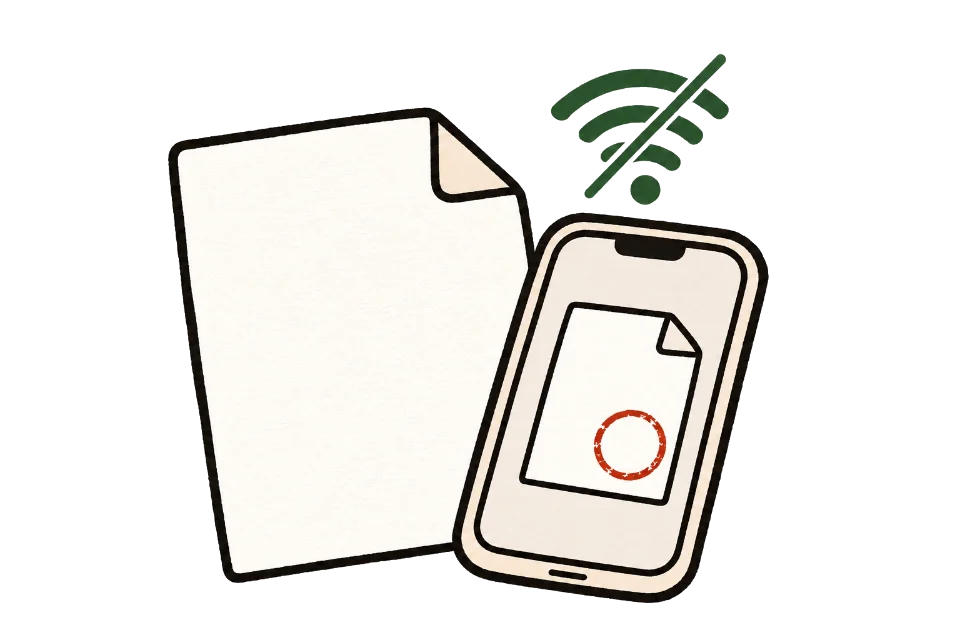
The simplest test is to go offline. Once this page shows "Ready", turn off Wi-Fi and mobile data, then add your files. Processing and saving still work. A tool that uploads files would stop here.
You can also use developer tools. On a computer, press F12, open the Network tab and run the tool. You may see analytics or ad requests, but no request anywhere near the size of your file.
Common questions
What resolution are the images?
An A4 page becomes a JPG about 890 pixels wide, a good size for screens and documents.
Can I get a higher resolution?
Not at the moment; the scale is fixed at 1.5 times. For large print images, another tool will serve you better.
Does it take long for many pages?
Time grows with the number of pages, and image-heavy documents take longer. Progress is shown page by page.
Can I convert only some pages?
Yes. Type a range such as 2 or 1-3, 5 in the page box.
Why do I get a ZIP file?
Saving many images one by one makes browsers ask repeatedly or block downloads, so several pages are bundled into one ZIP with numbered JPGs inside.
Can I get PNG instead?
Only JPG for now.
Can I convert password-protected PDFs?
Not directly. If you know the password, unlock the file first with Unlock PDF.