- Choose one PDF.
- Pick a method: every page, every N pages or custom ranges.
- Press Split and save the PDF or ZIP.
One scan, several recipients
Your scanner saved a whole stack of paperwork as one file: a W-2, two 1099s, a few receipts and a signed lease addendum. Split it into one file per page and you can upload each form to the right slot on a tax or benefits portal, or send your landlord only the page that concerns them.
It also helps when an email or upload form has a size limit, when you need just one chapter of a long manual, or when a teacher has scanned a whole class's worksheets in one go and wants a file per student.
Three ways to split
Every page puts each page in its own file. A 12-page PDF gives you 12 files.
Every N pages groups pages into fixed chunks. With 2, you get pages 1-2, 3-4, 5-6 and so on, and the last file holds whatever is left. This suits a scan of two-page forms, where each form should become its own file.
Custom ranges makes one file for each group you separate with commas. Typing 1-3, 4-6, 9 gives three files: pages 1 to 3, pages 4 to 6, and page 9 on its own. A page can appear in more than one group, so 1-5, 5-10 puts page 5 in both files. The range box uses a regular keyboard, so on a phone you can type hyphens and commas directly.
When you get a ZIP, and the file names
If the result is a single file, it is saved straight away as a PDF. Several files come as one ZIP named name-split.zip, with files inside such as name-1-3.pdf, or name-9.pdf for a single page. Page numbers are padded with zeros to match the page count, so in a 40-page document you get name-01-03.pdf and the files sort in order. On a phone, tap the ZIP in your files app to open it.
Pages are copied into new PDFs, not redrawn, so text stays selectable and quality does not change. Page rotation and links come along. Bookmarks (the outline panel) are not carried over, and your original file is left as it is.
When it won't split
Password-protected PDFs cannot be split. If you know the password, remove it first with Unlock PDF and add the unlocked copy.
If you want to delete or reorder pages rather than split, Organize PDF pages is the better fit. Very large files can be slow on a phone. If saving does nothing inside an app's built-in browser, open the page in your regular browser.
How to check that your file is not uploaded
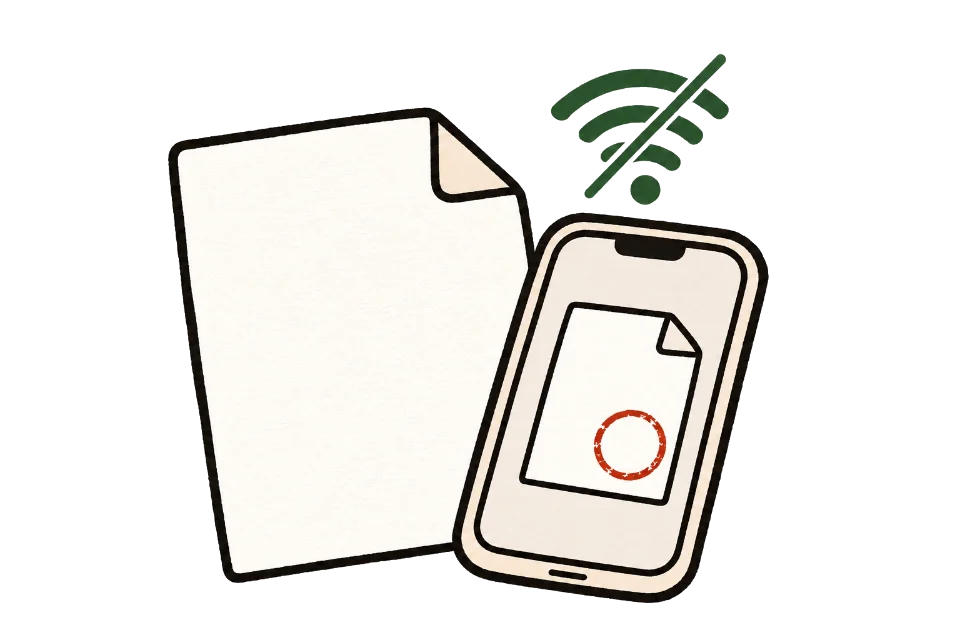
The simplest test is to go offline. Once this page shows "Ready", turn off Wi-Fi and mobile data, then add your files. Processing and saving still work. A tool that uploads files would stop here.
You can also use developer tools. On a computer, press F12, open the Network tab and run the tool. You may see analytics or ad requests, but no request anywhere near the size of your file.
Common questions
Can I extract just a few pages?
Yes. Type only those pages in Custom ranges, such as 5 or 3-7, and you get a single PDF with no ZIP.
Why do I get a ZIP file?
Saving many files one by one makes browsers ask repeatedly or block downloads, so several files are bundled into one ZIP. A single result is saved as a plain PDF.
Can one page go into several files?
Yes. Overlapping ranges such as 1-5, 5-10 put page 5 in both files.
Does splitting reduce quality?
No. Pages are copied as they are, not re-rendered.
Are bookmarks kept?
No. Pages are moved into new PDFs, and bookmarks do not come with them. Rotation and links do.
Can I split a password-protected PDF?
Not directly. If you know the password, unlock it first with Unlock PDF, then split the copy.
How do I put the files back together?
Add them to Merge PDF in the order you want.