- Choose one PDF.
- Pick Normal or Strong.
- Press Compress, then Save PDF.
A scan that is too big to email
A document scanned at 300 dpi often takes close to 1 MB per page, and a phone scanning app can produce 2 to 3 MB per page. Ten pages is enough to hit an email attachment limit or an upload form cap.
Almost all of that size is the picture on each page. This tool shrinks those pictures to a size that is still fine on screen and on paper, then puts them back. In our own test, a 10-page report scanned at 300 dpi went from 7.9 MB to 2.6 MB on Normal, and the same pages photographed with a phone went from 25 MB to 2.5 MB.
Normal and Strong
Normal limits each picture to 2,000 pixels on its long side, about 170 dpi on A4 or Letter. Text stays sharp when you zoom in and is fine for printing. Start here.
Strong goes to 1,400 pixels, about 120 dpi, with heavier compression. The same 10-page scan came out at 1.3 MB. At 200% zoom the edges of letters soften a little, but everything stays readable. Use it when the size limit is tight.
Some PDFs will not shrink
PDFs saved straight from Word or similar apps are mostly text and already small, so there is little to remove. If nothing can be reduced, the tool says so and does not hand you a file that is the same size or bigger.
Images stored as PNG, such as screenshots, are left untouched because recompressing them blurs small text. CMYK print images are skipped as well, since their colors could shift.
What the -compressed copy keeps
The result is saved with -compressed added to the original name. The document is not rebuilt; only the pictures are swapped, so selectable text, bookmarks, links, page order and rotation all stay. Your original file is not changed.
Reduced images cannot be restored to full quality. Keep the original and send the smaller copy.
When it won't open or takes long
Password-protected PDFs cannot be opened directly; if you know the password, unlock a copy first with Remove PDF password. Scans with hundreds of pages may run out of memory on a phone, so a computer is better for those. If saving does nothing inside an app such as a messenger, open the page in your regular browser.
How to check that your file is not uploaded
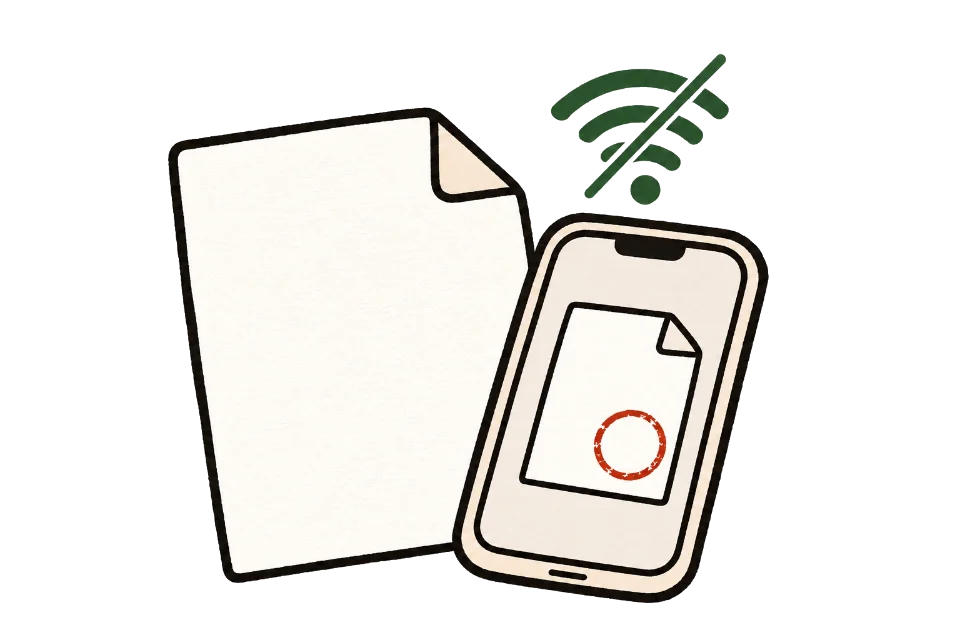
The simplest test is to go offline. Once this page shows "Ready", turn off Wi-Fi and mobile data, then add your files. Processing and saving still work. A tool that uploads files would stop here.
You can also use developer tools. On a computer, press F12, open the Network tab and run the tool. You may see analytics or ad requests, but no request anywhere near the size of your file.
Common questions
How much smaller will it get?
PDFs full of photos or scans shrink a lot; text-only PDFs barely change. Our measurements: a 10-page 300 dpi scan went from 7.9 MB to 2.6 MB (Normal) or 1.3 MB (Strong), and a phone-photo document from 25 MB to 2.5 MB.
Will the text get blurry?
Text inside a scan is part of the picture, so it is compressed too, but on Normal it was hard to tell apart from the original even zoomed in. Real text, as in a PDF saved from Word, is not touched.
Can I aim for a specific size?
There are two levels for now, Normal and Strong. If Strong is still too big, split the PDF into parts with Split PDF.
Why does it say the size would not change?
The PDF has almost no photos or scans to shrink. Text and drawings are already small. The tool does not give you a file that is no smaller than the original.
Does it shrink PDFs made of screenshots?
No. Screenshots stored as PNG are left alone because recompressing them blurs small text.
Will bookmarks or links be lost?
No. Only the pictures are replaced; the rest of the document stays as it was.
Is my original changed?
No. A new file ending in -compressed is saved. Reduced images cannot be restored, so keep the original.
Can it compress a password-protected PDF?
Not directly. If you know the password, unlock a copy first with Remove PDF password.