- Choose or drop your PNG screenshots.
- Use Up and Down to set the order.
- Press Create PDF, then Save PDF.
When a screenshot is the only record
Screenshots are often the only record you have. A text thread with a landlord about a repair, messages with a seller who never shipped, an email chain you need to show HR: gather the captures into one PDF in the order they happened, and the person reading can follow the story from top to bottom.
Paperless proof works the same way. Order confirmations, payment receipts from a banking app, a delivery status page or a booking that only exists on screen can all be captured and attached as a single PDF to an expense report, an insurance claim or a chargeback request. Support teams also like one PDF of error screens better than a dozen loose images.
Captures like these show names, phone numbers and account details in plain view. That is a good reason to build the PDF on your own device instead of uploading the images.
Why the text stays sharp
Phones and computers usually save screenshots as PNG, a format that compresses without losing detail, so small text and thin lines stay crisp. This tool puts each PNG into the PDF as it is, without converting it to JPG, so the text looks just as clear in the PDF as it did in the screenshot.
The trade-off is size. A high-resolution phone screenshot can be several megabytes, and the PDF is roughly the size of all the images combined.
How the pages are laid out
Each screenshot goes on its own A4 page, scaled to fit while keeping its proportions and centered, with no extra margin. Tall phone captures go on a portrait page; wide computer screenshots go on a landscape page.
PNG files carry no camera rotation data, so they appear exactly as they look on screen. Transparent areas show as white in most PDF viewers. You can mix in JPG photos too.
images.pdf and your original screenshots
The result is saved as images.pdf, and your screenshots are not changed. Text in a screenshot is part of the image, so it cannot be selected or searched; this tool does not run text recognition (OCR).
When a screenshot is refused, or needs hiding
Only PNG and JPG files are accepted; WebP, GIF and HEIC are refused. Large batches can be slow on a phone, and if saving does nothing inside an app's built-in browser, open the page in your regular browser.
If you need to hide personal details, crop or mark up the screenshots in your photo app before adding them. This tool has no redaction feature.
How to check that your file is not uploaded
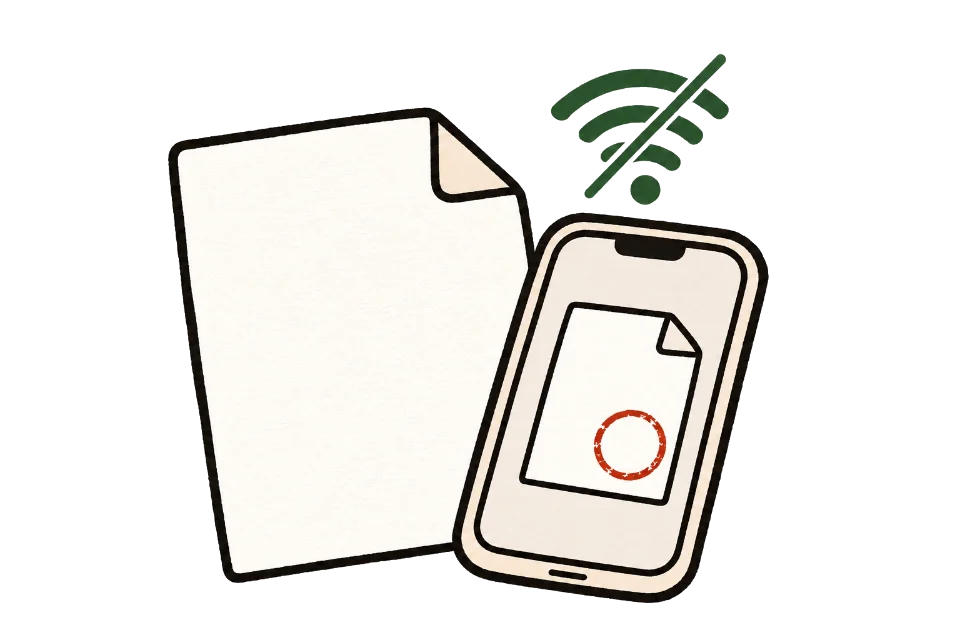
The simplest test is to go offline. Once this page shows "Ready", turn off Wi-Fi and mobile data, then add your files. Processing and saving still work. A tool that uploads files would stop here.
You can also use developer tools. On a computer, press F12, open the Network tab and run the tool. You may see analytics or ad requests, but no request anywhere near the size of your file.
Common questions
Can I mix PNG and JPG?
Yes. Add both and they go into one PDF in the order of the list.
Will the text get blurry?
No. PNG images are placed in the PDF without being recompressed.
Why is the PDF so large?
The screenshots go in as they are, so the PDF is about as large as the images combined. This tool does not compress; resize the screenshots first if you hit an upload limit.
What happens to transparent backgrounds?
Most PDF viewers show transparent areas as white.
How do long scrolling screenshots come out?
Each image gets one page, so a very long capture is scaled down to fit the A4 height and the text can get small. Taking it in a few shorter captures works better.
Can I put several screenshots on one page?
Not yet. Each image gets its own page.
A screenshot came out sideways. How do I fix it?
PNG files go in exactly as they look. Open the PDF in Organize PDF pages, rotate that page and save.